Correct Clips with AI
After your clips are generated, you might want to adjust the content or fix minor issues. The "Correct with AI" feature allows you to regenerate a clip based on your specific instructions.
Accessing AI Correction
You can find the "Correct with AI" button below the preview of each generated clip.
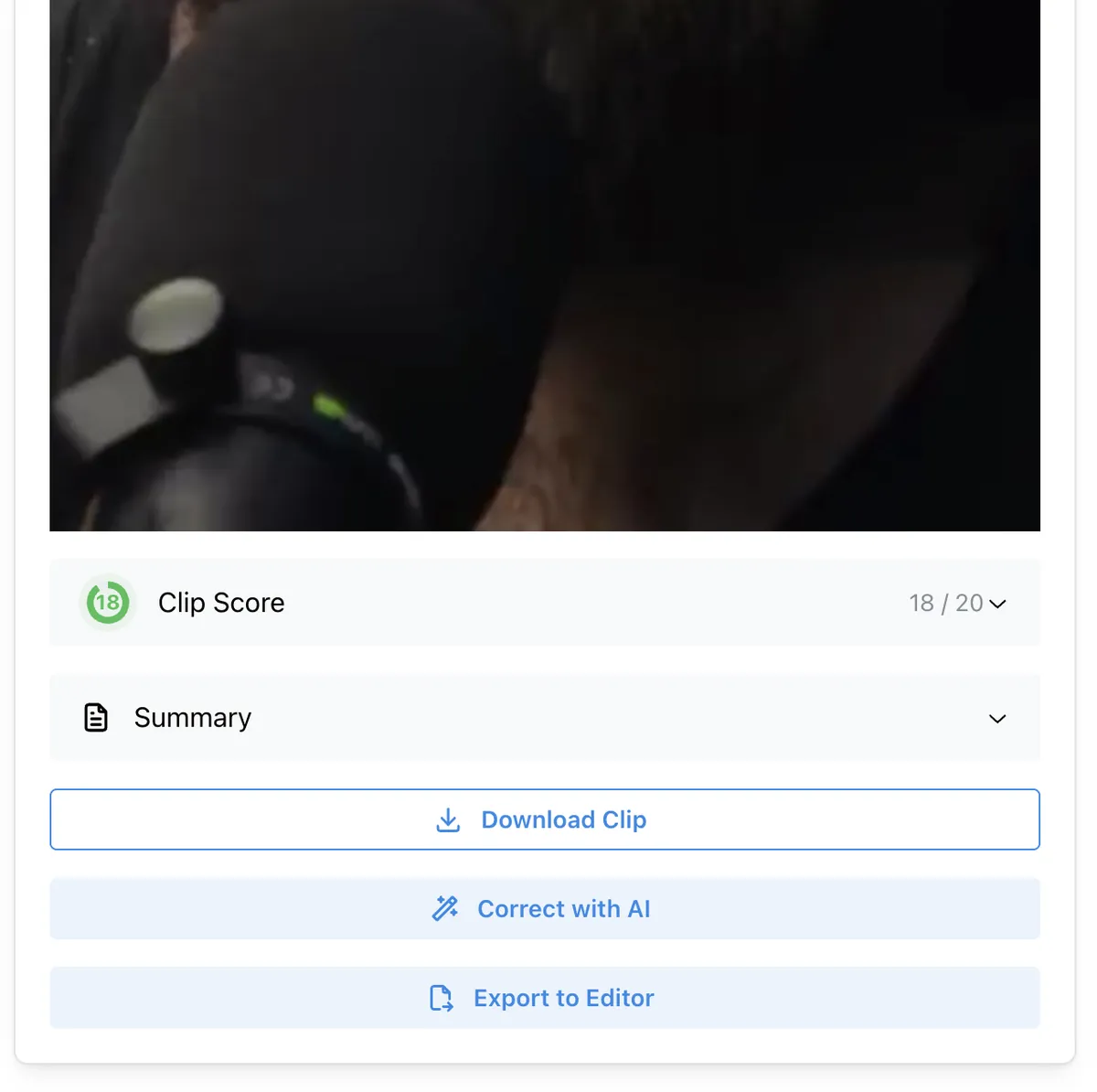
When you click this button, a popup will appear where you can enter your prompt.
Note: Each regeneration costs 2 credits.
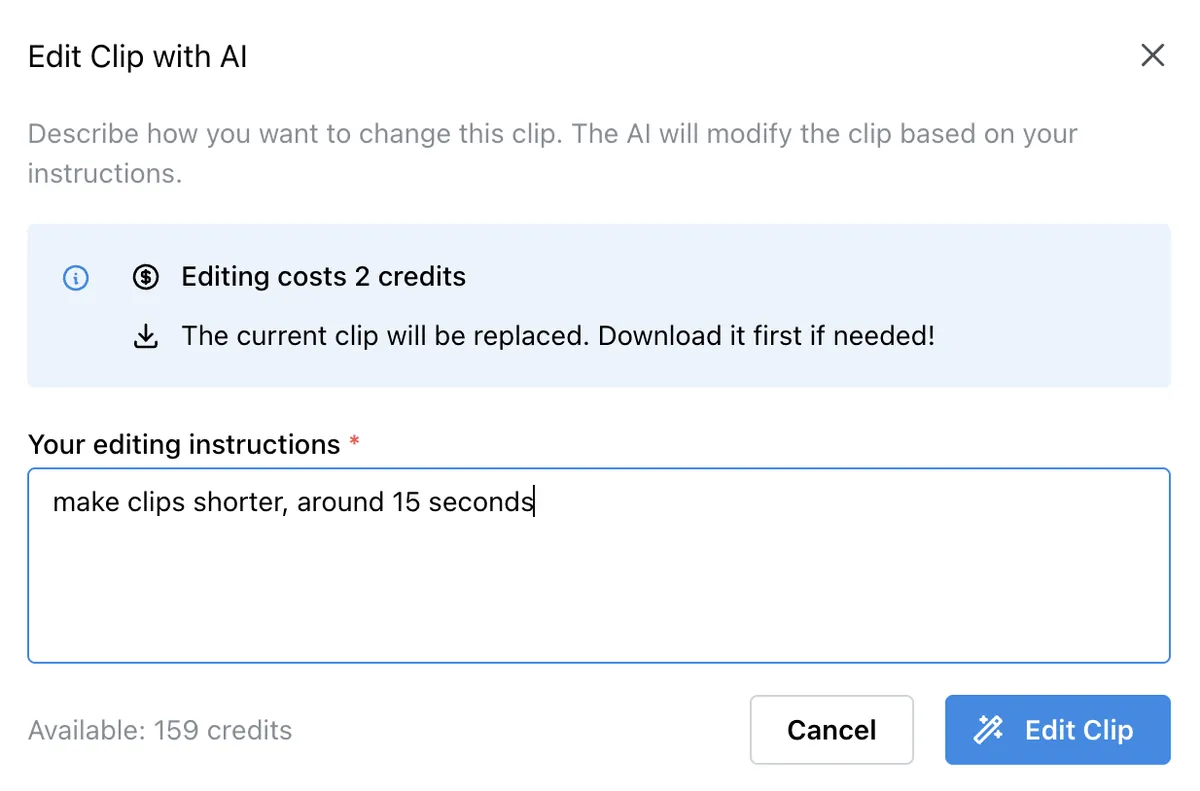
What You Can Change
The AI correction prompt supports two main types of adjustments:
1. Changing the Meaning (Content Adjustment)
You can modify the content of the clip by adjusting which moments are taken from the original video. This allows you to:
- Add information: Include segments that were missed.
- Remove content: Cut out parts that aren't relevant.
- Rearrange moments: Change the sequence to alter the overall message or flow.
2. Fixing Subtitles
If you notice errors in the subtitles, such as incorrectly transcribed specific terms or names, you can ask the AI to correct them.
Limitations
Please note that AI correction is strictly for content and text adjustments. It does not support visual changes to the clip.
You cannot use this feature to:
- Change framing or cropping (e.g., resizing for different aspect ratios).
- Modify subtitle styles (font, color, position).
- Add visual effects or AI-generated visuals.
- Insert B-roll footage.