Export Clips to a Video Editor
ViralClips allows you to take your generated clips further by exporting them directly to professional video editing software. This is perfect for advanced editing, color grading, or adding custom effects.
Accessing the Export Feature
You can find the "Export to Video Editor" button below the preview of each generated clip.
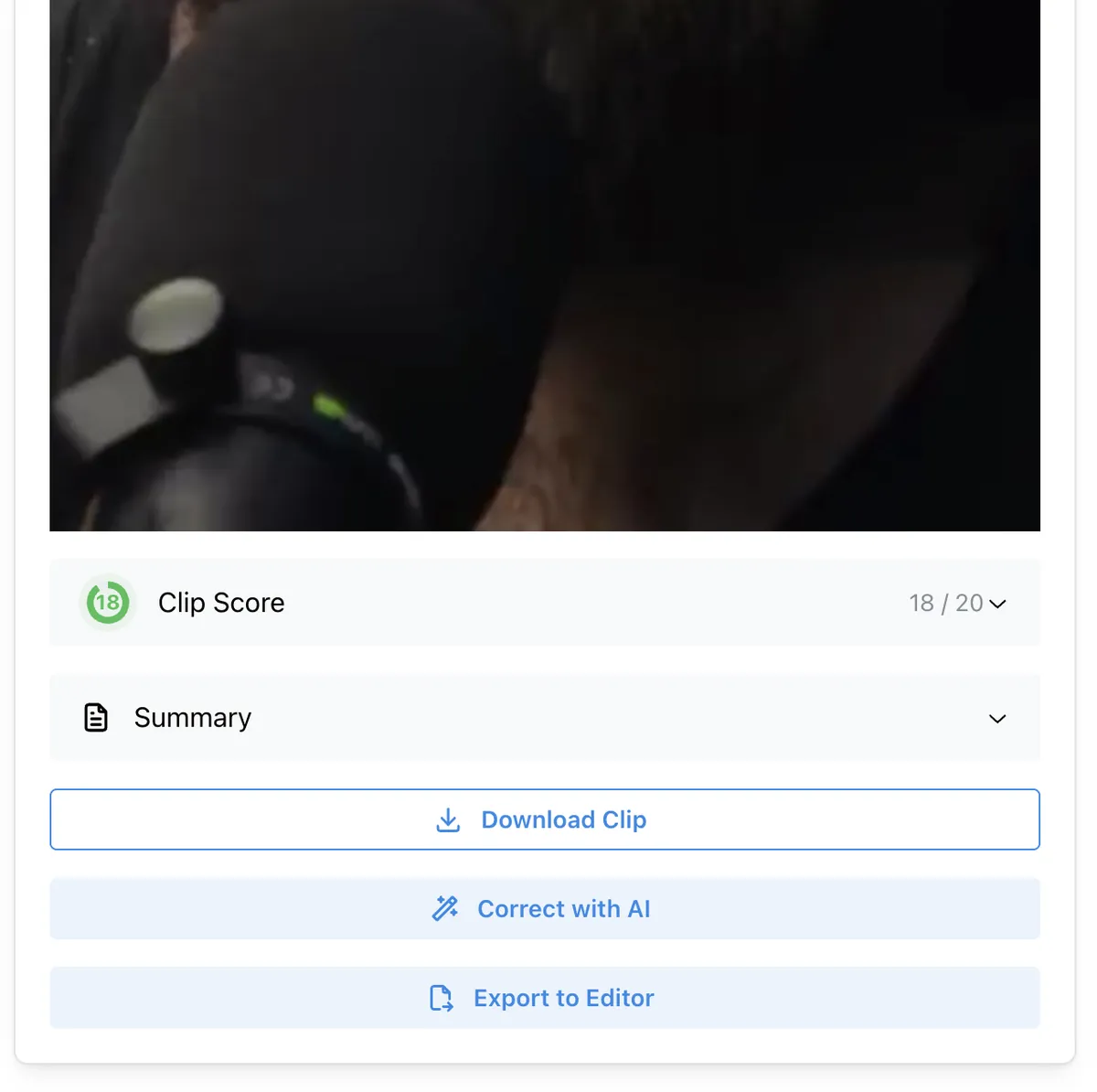
Clicking this button opens the export configuration popup.
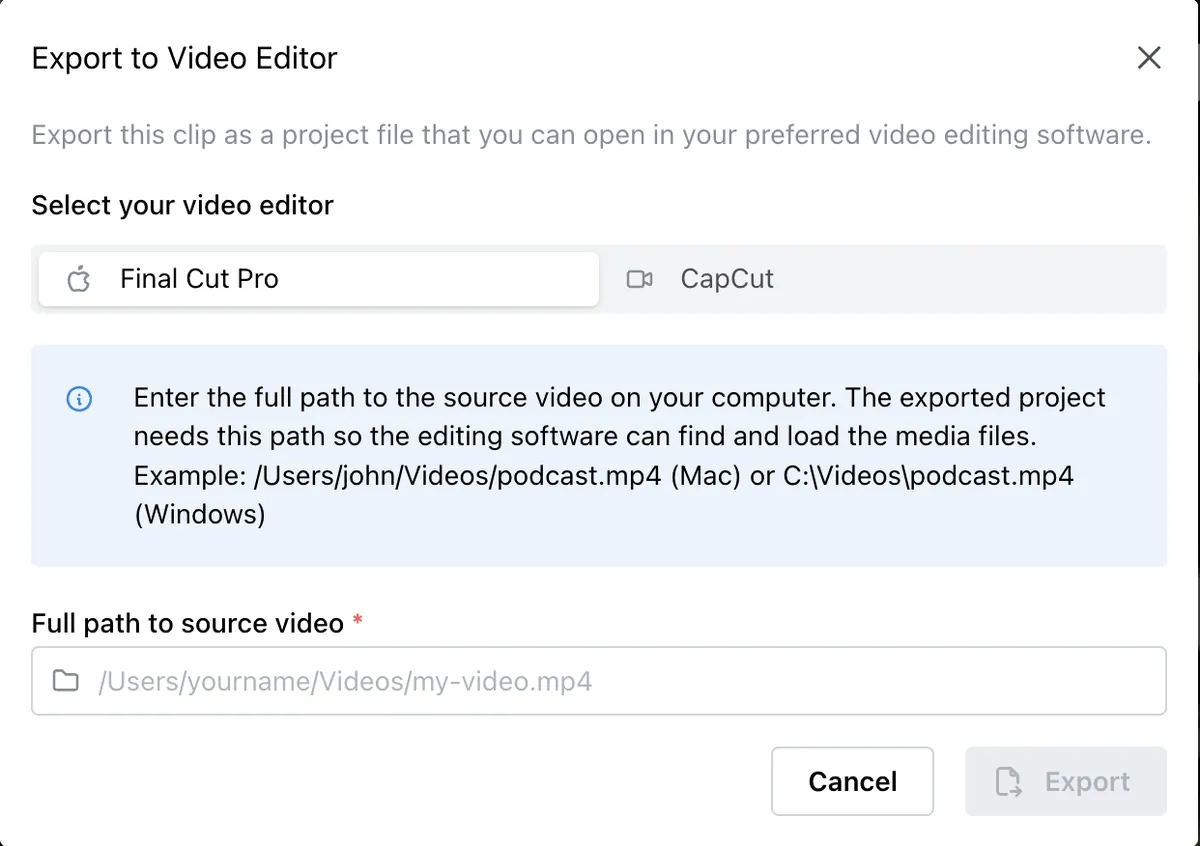
Supported Editors
Currently, export is supported for the desktop versions of the following applications:
- Final Cut Pro
- CapCut
Note: Exporting to a video editor is completely free.
How It Works
To export a project, you must specify the path to the original source video on your computer.
- The export file generated by ViralClips contains instructions on how to cut the video (timeline segments) and crop it (vertical/portrait mode).
- It does not contain the video file itself. The video editor needs the original file to reconstruct the project.
Export Features & Limitations
- Supported: Timeline segments placement, vertical (portrait) cropping.
- Not Supported: Subtitles are not exported to the video editor project.
Editor-Specific Instructions
There are important differences in how the export works for each editor:
Final Cut Pro
- Output: A single project file.
- Usage: You can save this file anywhere on your computer and open it normally like any other Final Cut Pro library or XML file.
CapCut
- Output: An archive containing multiple files.
- Usage: This archive must be placed into a specific folder. The exact path to this folder will be displayed in the pop-up window during the export process. Please follow the on-screen instructions carefully.
Generation Time
Keying in the details and generating the project file usually takes only a few seconds. Once opened, you can continue refining your clip with all the tools available in your chosen video editor.