Working with Presets
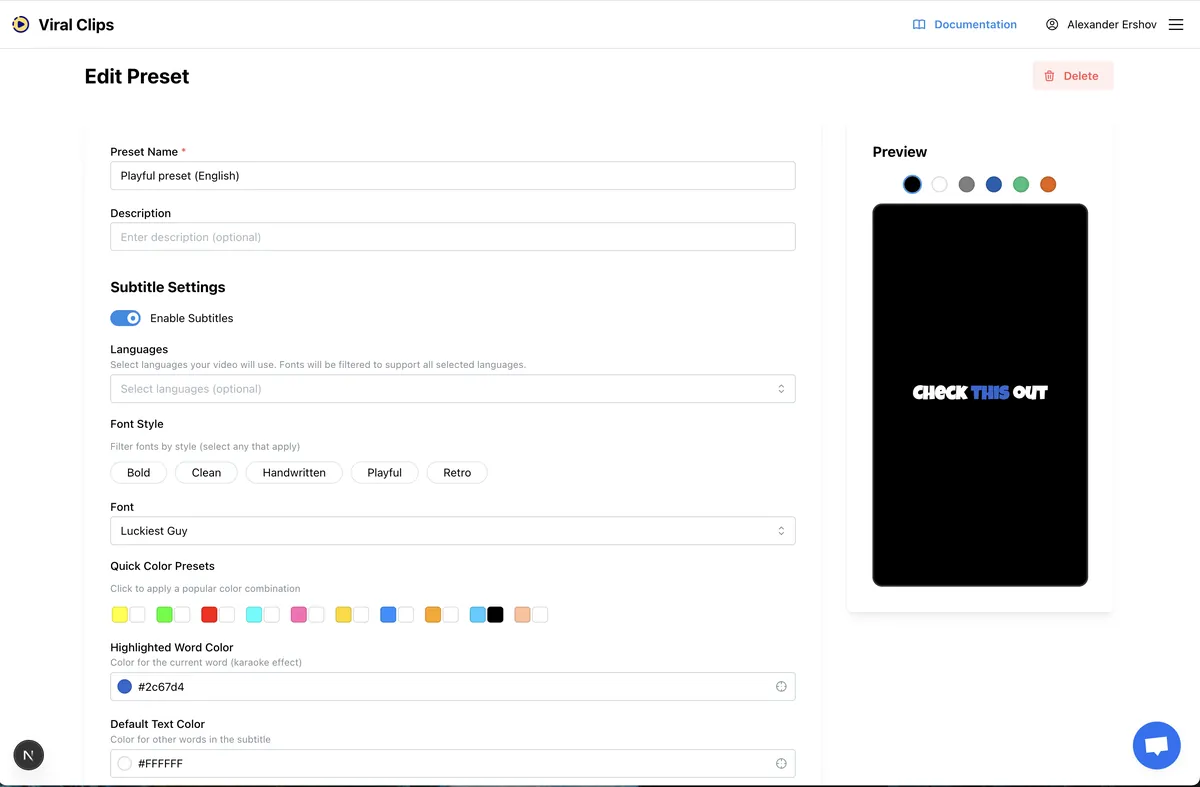
Presets allow you to customize the visual style of your subtitles, ensuring your clips match your brand or personal aesthetic. You can manage your presets here.
What You Can Customize
With presets, you have full control over how subtitles appear in your clips:
- Subtitle Position: Choose where the text appears on the screen.
- Visibility: You can disable subtitles entirely if preferred.
- Font: Select from a wide variety of typefaces.
- Colors: Configure the text color for the entire subtitle line and a distinct color for the active word currently being spoken.
Subtitle Positions
There are three available positions for your subtitles:
- Top
- Center
- Bottom
Choosing the Right Font
Language Support
Fonts can be filtered by the language of the source video. It is crucial to select a font that supports the language of your clip.
- Warning: If you choose a font that does not support the video's language, the system may revert to a default font, or characters may display incorrectly.
Style Categories
To help you find the perfect look quickly, fonts are grouped into several style categories:
- Bold
- Clean
- Handwritten
- Playful
- Retro
Using Presets
Once you have created your presets, they will be available on the main dashboard.
- Upload your source video.
- In the configuration step, simply select one of your saved presets from the list to apply that style to the generated clips.
Limits
Each Viral Clips account can store up to 10 presets.