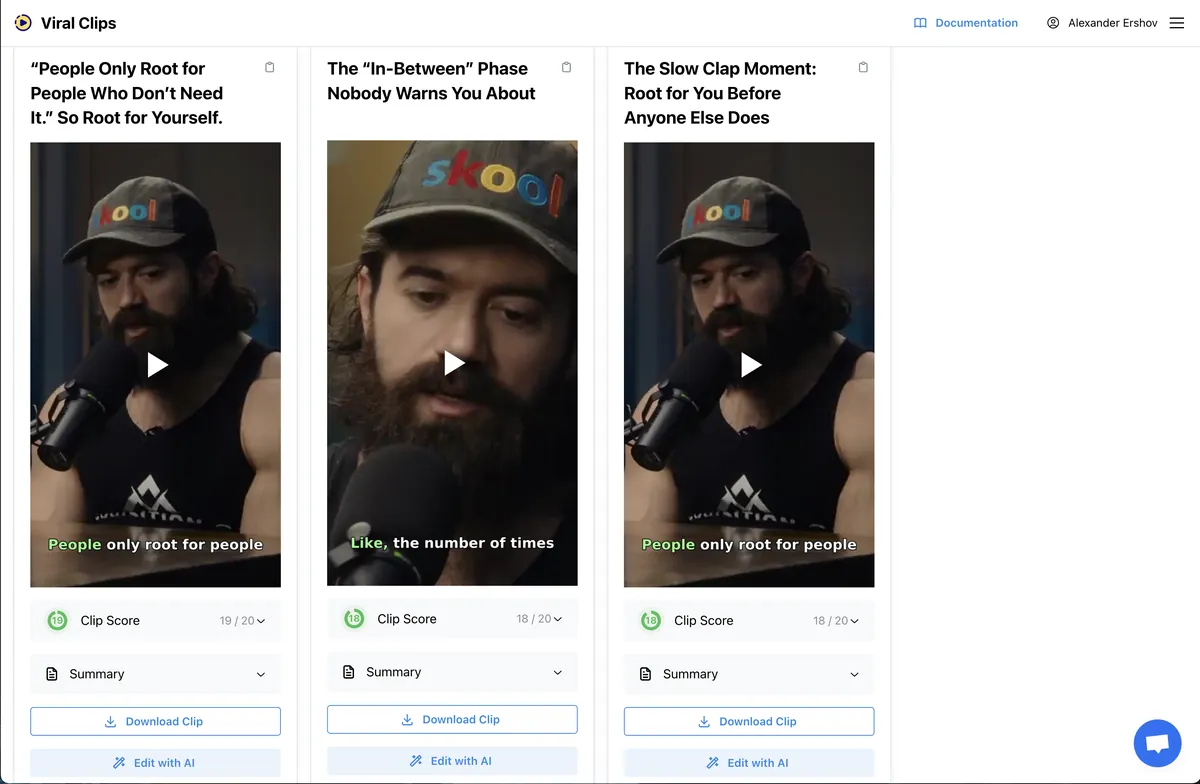
Create Clips from Video
ViralClips makes it easy to automatically cut highlights from your podcasts or talking videos for TikTok, YouTube Shorts, and Instagram Reels. Follow these steps to get started:
1. Upload Your Video
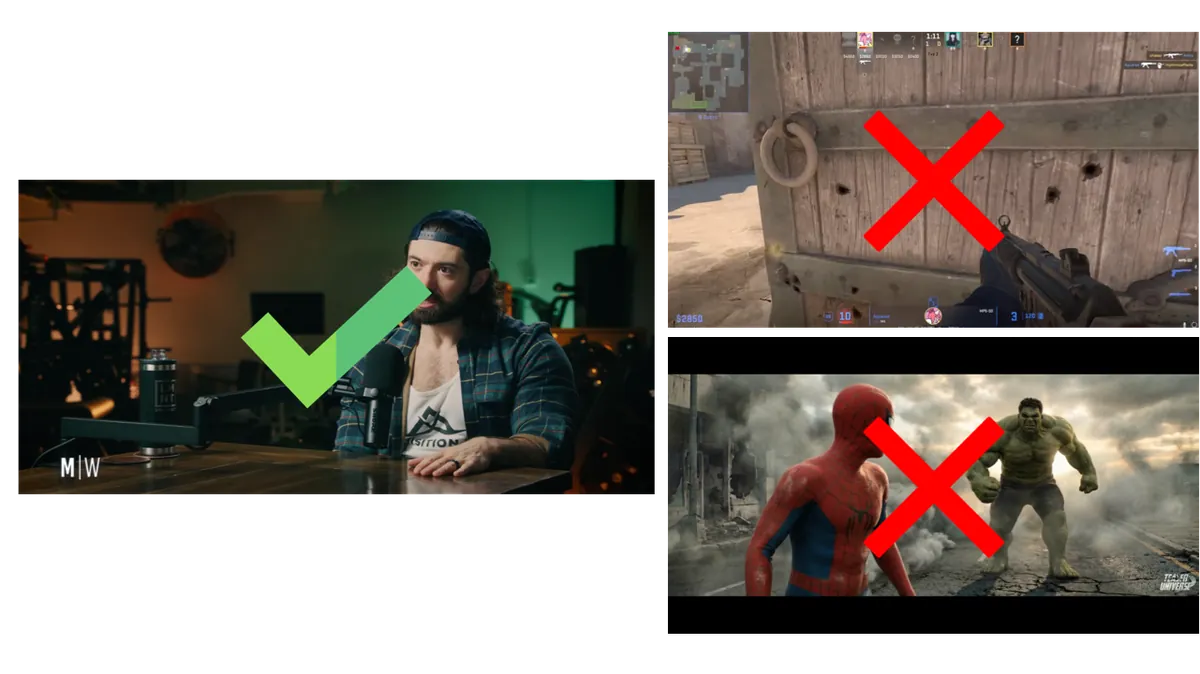
To get the best results, upload a conversational video with mostly static visuals. This includes:
- Podcasts
- Webinars
- "Talking head" videos
Note: The service is specifically optimized for conversational content. Avoid uploading movies, livestreams, gaming streams, or videos without meaningful spoken content, as these will likely produce poor-quality reels.
Recommendation: Choose videos that are at least 20–30 minutes long. This allows the service to find more interesting moments and generate more engaging clips.
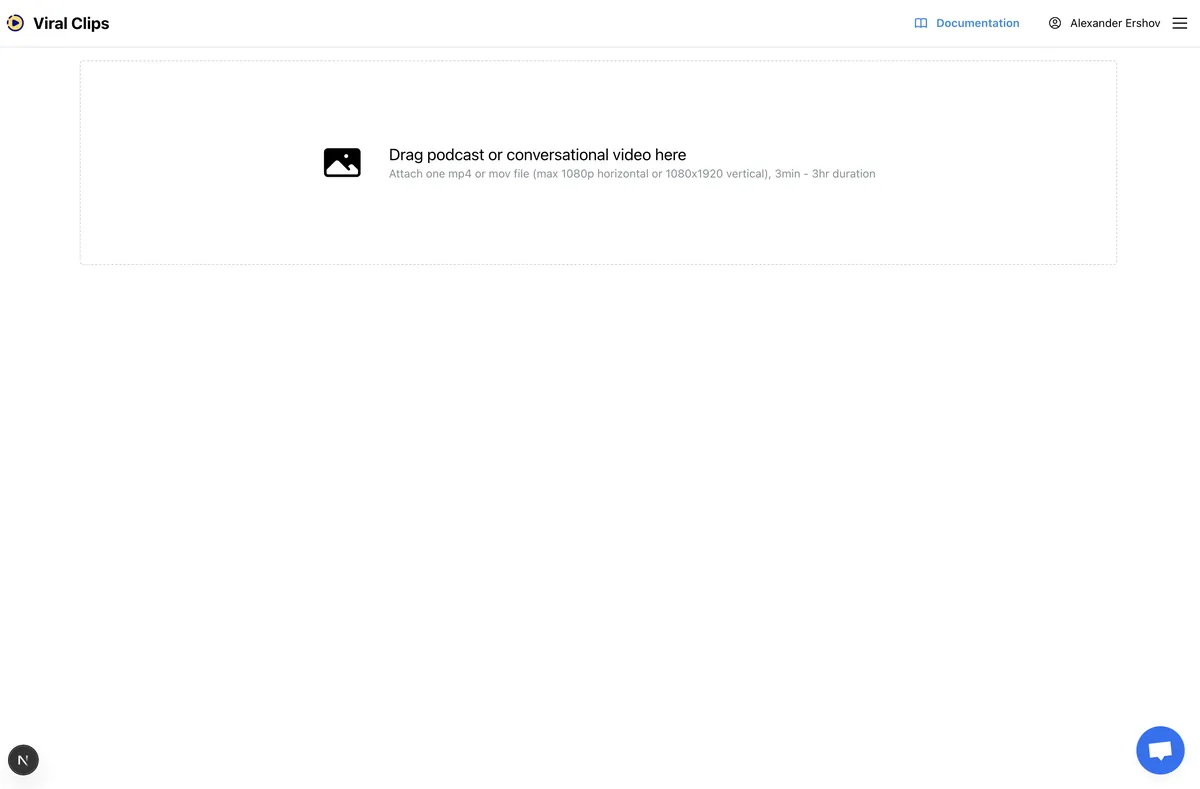
2. Configure Generation Style
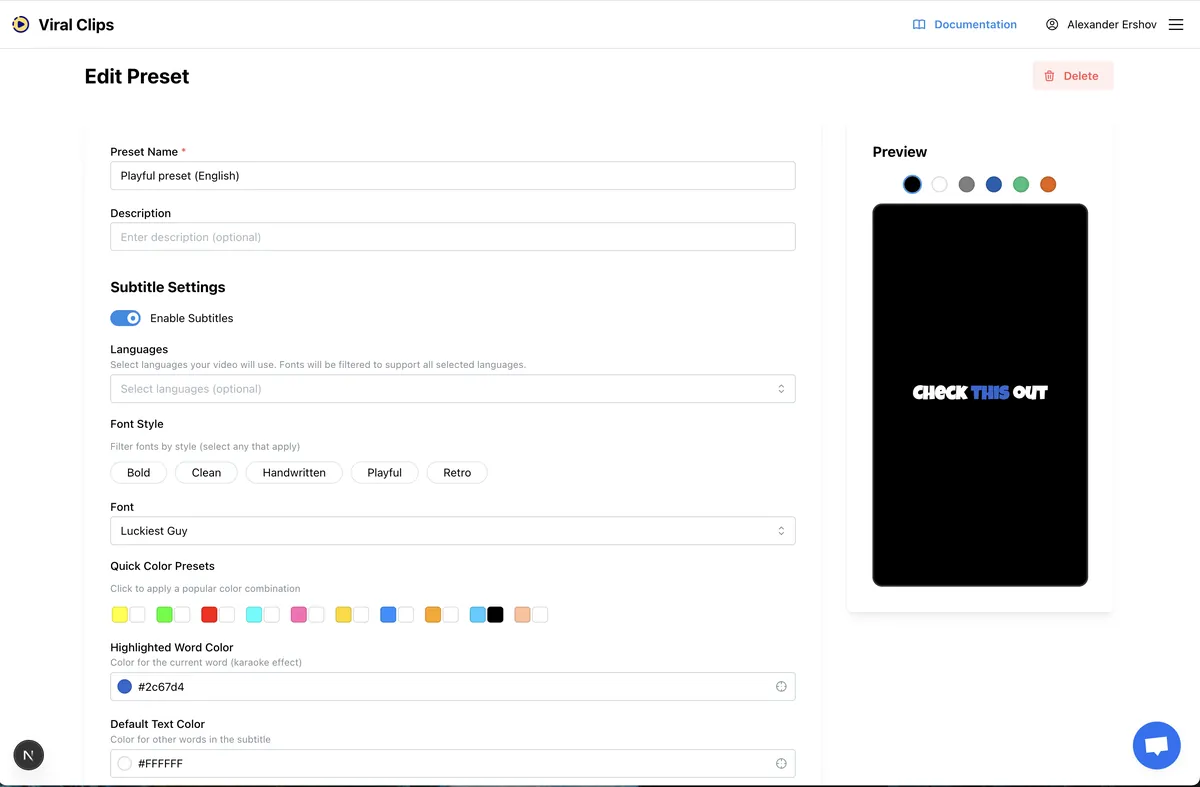
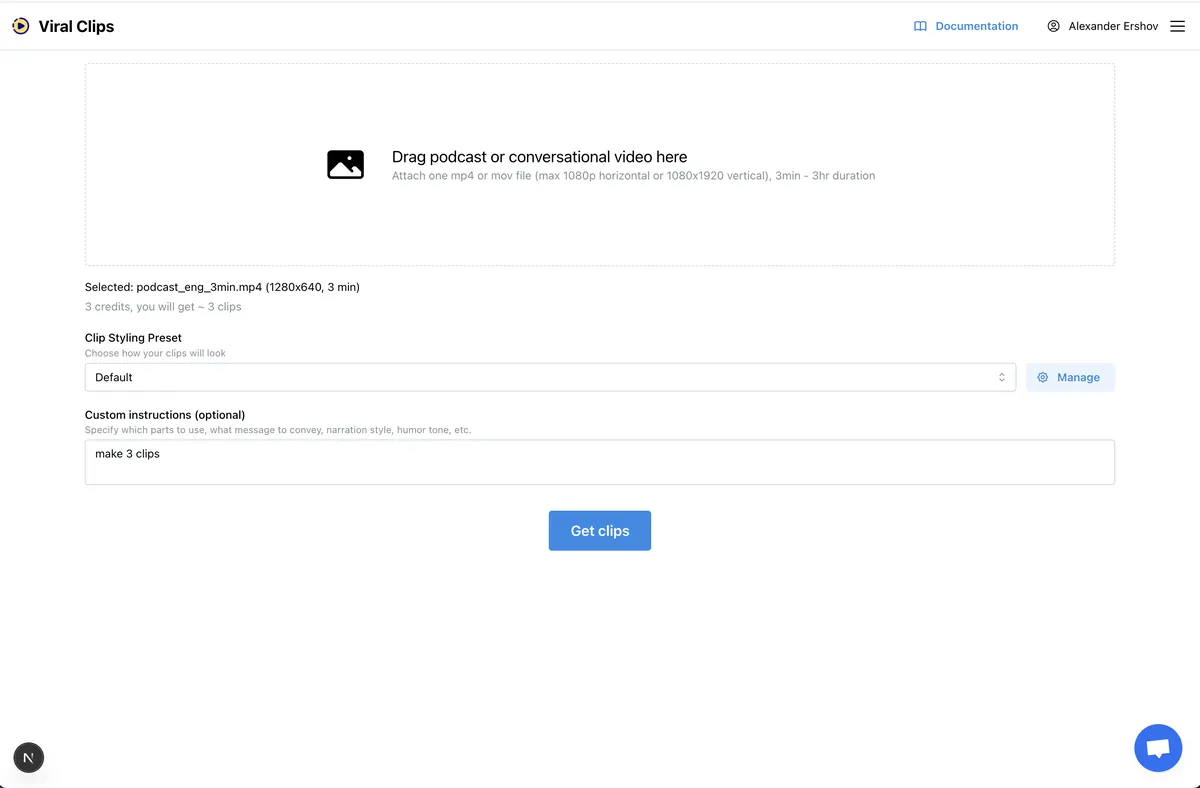
Select a preset to define the visual style of your clips. You can manage your presets here. Within the presets, you can customize:
- Subtitle color and font
- Position of the subtitles on the screen
For a detailed guide on creating and managing presets, please refer to the Working with Presets page.
3. Provide Instructions (Optional)
Before generating, you can provide a prompt to guide the AI. There are two ways to use this:
- Specify moments: If you know a specific segment or idea is in the video, explicitly tell the algorithm to include it.
- Describe intent: Ask for a specific tone or outcome, such as "humorous reels," "dramatic moments," or clips conveying a specific message.
Important: The instructions feature does not support visual adjustments. You cannot use it to request AI video effects, music, specific frame cutting, transitions, etc.
Tip: If your video uses unique terminology, you can include these special terms in the prompt to ensure the service transcribes them correctly.
4. Generate Clips
Click "Generate clip" to start the process. Our AI will analyze the video based on your video source, style settings, and instructions.
5. Download and Refine
Once generated, you can download your clips directly. You can also correct them or export them to a video editor for further polish.
(For more details on correction and exporting, please refer to the relevant documentation pages.)